
Fidelity Height • TCG Opal SED software for Windows

Lock & Protect Your SED Drives in Minutes

Manage hardware encryption on TCG Opal drives without complexity. Secure sensitive data, prevent breaches, and stay compliant – all from one simple tool.

Works with SATA, NVMe, and USB TCG Opal drives on Windows

  • TCG / Opal SED
  • Erasure verification
  • Pre-boot unlock ready

Turn On SED Encryption

Disk Security Management Desktop Security Console
SED Encryption Disabled SED Encryption Enabled
DATA
UNPROTECTED ENCRYPTED
System Drive (C:) Not Encrypted Encrypted
External Drive (D:) Not Encrypted Encrypted
USB Backup Not Encrypted Encrypted

SED hardware vs OS-only software encryption

Why hardware encryption is needed: when sensitive data lives on laptops and removable media, protection should stay enforced by the drive itself, not only by whatever state the OS is in. Hardware-encrypted SEDs keep encryption anchored at the storage layer, which helps improve control during boot, recovery, and device-loss scenarios.

Topic TCG Opal SED + Opal Lock Typical OS software encryption
Security boundary
  • Encryption and media access controls are anchored on the drive.
  • Protection behavior stays tied to the SED, not only host software.
  • Keys and policy enforcement depend on the OS trust boundary.
  • Overall assurance depends more on host hardening.
Unlock path and operational control
  • Opal Lock manages lock and unlock policies on supported SEDs.
  • Optional pre-boot unlock, audit, and erase workflows are built in.
  • Unlock behavior is mostly tied to the OS session state.
  • Control is weaker outside normal boot and recovery paths.
Performance and endpoint contention
  • Bulk crypto runs on the drive engine instead of the host CPU.
  • Heavy read and write activity avoids extra endpoint contention.
  • Encryption work consumes host CPU cycles through the OS stack.
  • It can compete with apps, updates, and background processes.
Best fit
  • Best when you already use, or plan to deploy, TCG Opal SEDs.
  • Ideal when you want TCG-native management and enforced drive behavior.
  • Better suited to general-purpose volume encryption without SEDs.
  • Common choice when broad hardware compatibility matters most.

Opal Lock is purpose-built for self-encrypting drives, not a replacement for every BitLocker-style deployment.

Opal Lock

What you can do with Opal Lock

One Windows app aligned with how TCG Opal self-encrypting drives actually work – setup, locking, unlock paths, and documented operations when your license includes them.

IT professional managing drive security controls on a workstation
Built for Opal workflows

Manage actual SED behavior across setup, recovery, audit, and edition-specific operations.

01

Control the drive, not a generic volume

  • Set and rotate passwords and enable locking ranges.
  • Lock or unlock by power cycle, USB reconnect, or in-app actions.
  • Use workflows aligned to Opal behavior, not generic volume tools.
02

Unlock before Windows when your edition allows

  • Configure pre-boot images on supported editions.
  • Use recovery USB for locked system-drive access when needed.
  • Open protected drives without relying only on a running OS session.
03

Audit, query, and defensible erase

  • Read on-drive activity and export query results.
  • Use sanitization and certificate workflows where licensed.
  • Provide documented drive-level evidence for ops and compliance.
04

Pick the edition for your hardware

  • USB for external Opal drives.
  • Standard and Premium for internal and external deployments.
  • Premium adds multi-drive workflows; details are in the full list below.
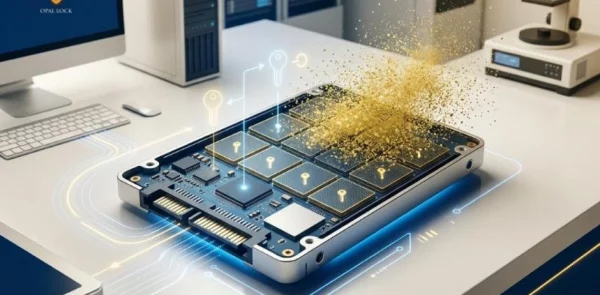
Data erasure and drive security workflow visualization

Everything you need to control drive security

🔒 Instant Drive Locking

Lock drives on shutdown, reboot, or manually in one click.

⚡ Hardware-Level Security

No performance hit. Uses built-in encryption already on your drive.

🔁 Flexible Unlock Options

Pre-boot authentication, USB unlock, or saved credentials.

📊 Full Visibility & Control

Track drive status, audit logs, and security settings easily.

Features by edition

Hardware full-disk encryption (SED)

Use the drive’s built-in encryption—TCG Opal—so crypto stays on the device, not only in the OS.

No host CPU crypto load

Encryption work is handled by the SED, avoiding the typical software-encryption CPU tax.

Pre-boot image & PBA

Standard/Premium: pre-boot image on shadow MBR or recovery USB so a locked system drive can be unlocked before Windows starts.

Multi-drive operations (Premium)

Premium streamlines setup, lock, and unlock across multiple managed drives.

USB & internal Opal drives

USB edition: external Opal USB drives. Standard/Premium: internal and external drives within your license limits.

Audit log & sanitization

Supported editions: on-drive audit events, query export, and certificate of sanitization where licensed—not marketing fluff, documented operations.

Choose your path: USB, Standard, or Premium

Opal Lock isn’t generic disk encryption—it works with TCG Opal self-encrypting drives. Pick the edition that matches whether you need USB-only operations or full setup on PCs.

USB

Opal Lock USB $5

Up to five external USB-mounted Opal drives with setup, lock/unlock, revert, sanitization certificate, and saved passwords.

  • USB-first workflow for portable encrypted media
  • Fast rollout for teams using external drives only

Best for: Teams standardizing on portable Opal USB storage.

Buy USB

Premium

Opal Lock Premium $15

Everything in Standard plus multi-drive setup/lock/unlock and a second password with limited authority.

  • Higher-volume operations across more drives
  • Extra control model for delegated drive actions

Best for: IT managing several SEDs per machine or fleet.

Buy Premium

Separate license offering

Opal Lock Lite (Free Unlock License)

Treat Opal Lock Lite as a separate license, not part of USB/Standard/Premium regular license listings. It is designed only for compatible external USB Opal drive unlocking.

  • Unlock-only flow for shared encrypted USB drives.
  • Not a trial and not a replacement for Regular USB workflows.
  • Best when recipients need access without full management licensing.

Compare editions

Compare editions at a glance. For full feature detail and deployment rules, see the Opal Lock User Guide.

Capability USB Standard Premium
Primary use Manage external USB Opal drives Internal + external Opal drives Same scope as Standard + advanced ops
Typical drive count (guide) Up to 5 USB Up to 5 (incl. internal) Up to 5 (incl. internal)
Internal / system drive setup No Yes Yes
Pre-boot image / PBA (locked system drive) No — USB edition is for external USB Opal drives Yes Yes
Multi-drive setup · lock · unlock No No Yes
Second password (limited user) No No Yes
Certificate of sanitization / erase workflows Yes Yes Yes
Query drive & audit log (on-drive) Yes Yes Yes

Deployment flow

How it works

From install to audited operation, Opal Lock follows a practical sequence your IT team can repeat at scale.

1 Start

Install & activate

  • Install the Windows app from your purchase flow.
  • Activate your license online or offline.
2 Configure

Set up your TCG drive

  • Assign a drive password and enable locking.
  • Configure pre-boot images or recovery USB where supported.
3 Protect

Lock & unlock

  • Lock via power cycle, USB reconnect, or in-app lock.
  • Unlock in Windows or pre-boot (PBA).
4 Control

Operate & document

  • Query drives, review audit logs, and manage passwords.
  • Use revert/sanitization options based on your license.
Drive
Encryption
Protected Data

No complex setup. No deep technical knowledge required.

Launch with confidence

Choose the Opal Lock edition that fits your rollout.

Compare features side-by-side and confirm system requirements before deployment.

  • Clear edition comparison
  • Hardware-first security model
  • Built for IT teams and real workflows

Readiness checklist

Before you install

Opal Lock runs on Windows and requires compatible hardware. Validate these checkpoints first to avoid failed pilots.

Operating system

  • Windows 10, Windows 11, or Windows Server 2019 / 2022

Drive & firmware

  • TCG Opal self-encrypting drives (SEDs), Opal Lock manages compatible Opal drives, not arbitrary disks
  • SATA or NVMe (per guide); USB scenarios per edition

System & BIOS

  • Secure Boot must be disabled for installation/use (per user guide)
  • If Block SID is enabled on a drive, you may need to disable it in BIOS before setup

Full detail: Opal Lock User Guide.

Ideal teams

Who it’s for

Opal Lock fits teams that need practical drive security, predictable operations, and clear evidence when policies are audited.

IT & security teams

Standardize on TCG Opal SEDs with documented lock, unlock, audit, and erase workflows.

Field & remote laptops

Lock drives at power-down or via UI; unlock with PBA when the system drive is protected.

Portable Opal USB

USB edition scenarios for contractors and media that move between machines.

Audit & disposal

Certificate of sanitization and cryptographic erase paths where your license supports them.

Value pillars

Why Opal Lock

Built for teams that want hardware-first drive security with practical day-to-day operations, not generic encryption tooling.

TCG-native, not generic

Designed around Opal drive behavior, MSID, PSID, shadow MBR, and pre-boot images, rather than one-size-fits-all lock software.

Encryption stays on the SED

Keys and crypto remain tied to the drive’s hardware security model, not only operating system policy.

Operational evidence

On-drive audit logs and sanitization documentation give teams defensible proof of what happened.

Clear edition ladder

USB, Standard, and Premium map to real deployment patterns, making selection and rollout clearer for IT.

Reference

TCG Opal and self-encrypting drives (SEDs)

Quick clarity for teams and stakeholders: what SEDs are, where Opal fits, and what to validate before rollout.

  • Hardware-backed encryption model
  • Consistent lock behavior outside OS state
  • Deployment fit checks before rollout
01

Core concept

Hardware-first encryption

  • SEDs encrypt on the drive, not only in the OS.
  • TCG Opal is the common spec family used to manage compatible SEDs.
  • Opal Lock is a Windows management app for Opal SEDs.
  • It does not convert non-SED disks into SEDs.
02

Risk behavior

SEDs vs software-only volume encryption

  • SEDs offload crypto work to the drive.
  • Protection behavior stays consistent even when the OS is off.
  • Useful for lock-at-power-down and pre-boot unlock workflows.
03

Rollout readiness

Fit and prerequisites

  • Success depends on drive compatibility and environment checks.
  • Validate Windows version, BIOS setup, and related prerequisites.
  • Review Before you install before standardizing rollout.

Frequently asked questions

What does Opal Lock do and why do I need it?
Opal Lock uses Opal SED technology to set up and manage built-in hardware-based encryption on compatible drives. Protecting your data is more important than ever, and Opal Lock provides protection that remains secure even if a drive is physically lost.
What is a self-encrypting drive (SED)? What is an Opal SED?
Self-encrypting drives have built-in hardware-based encryption. Opal SEDs conform to the Opal SSC specification from TCG, and many drive manufacturers offer them.
How do I know if my drive is compatible with Opal Lock?
Compatible drives have a unique Physical Security ID (PSID). You can find the PSID printed on the drive label.
Can I use Opal Lock with external or portable drives?
Yes. Opal Lock can detect, set up, and manage Opal drives mounted on the system, whether internal or external.
What are the system requirements for Opal Lock?
Opal Lock supports Windows 10/11 and Windows Server 2019/2022. It works with SATA, NVMe, USB, and other third-party drivers like SAS host adapters across HDDs and SSDs. An unused USB drive is also required for setup.
With Opal Lock, how secure is my data if I lose my computer?
Your data cannot be accessed without your password. An adversary cannot decrypt the data and can only execute a cryptographic erase, which wipes data without exposing it.
Does Opal Lock encrypt my data? What type of encryption does it use?
Opal Lock enables the drive’s built-in encryption. When the drive is locked, all data on the drive remains encrypted using hardware-based encryption.
What should I do when the system drive is locked out?
This can happen when a preboot image was not written to the shadow MBR during system-drive setup. In this case, use a Recovery USB to unlock the system drive.

Customer proof

What customers say

★★★★★

“Setup was quick, and the team understood it immediately.”

IT Manager, Mid-size firm

★★★★★

“Exactly what we needed: simple protection that just works.”

Operations Lead, Services company

★★★★★

“We finally rolled out encryption without confusion.”

Admin, Distributed team

★★★★★

“Pre-boot unlock removed a big headache in our laptop rollout.”

Security Engineer, Finance team

★★★★★

“The audit and sanitization workflows made our compliance review much easier.”

Compliance Lead, Enterprise IT

★★★★★

“Exactly the control we needed for mixed internal and USB Opal drives.”

Infrastructure Admin, Distributed workforce

For hardware partners

Need an OEM license for pre-installed devices?

An OEM (Original Equipment Manufacturer) license is a software or product license sold to manufacturers to pre-install on hardware. If you ship systems with Opal SEDs and want Opal Lock ready out of the box, we can help you set up the right OEM licensing model.